

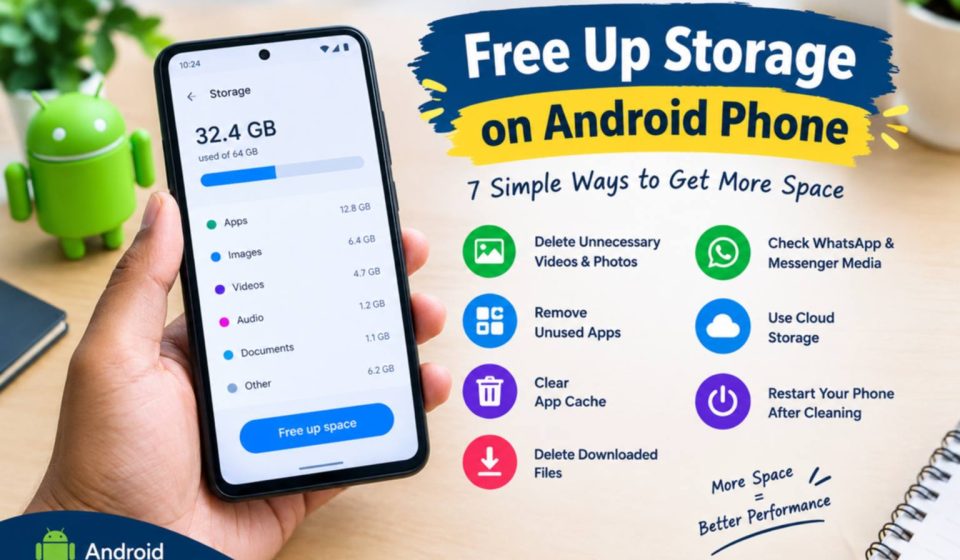

How to Free Up Storage on Android Phone.
You will face the issue of storage MobileDokan.co
MobileDokanup: but once your phone runs out of storage, your android can become sluggish, some apps may not work properly, and you may be unable to download files or update apps.
Fortunately, you do not always have to purchase a new memory card or a new phone. Here are a few easy ways to clear space on an Android.
1. Delete Unnecessary Videos and Photos
Your photos and videos are hogging a lot of storage. Launch Gallery and look for duplicate photos, unwanted screen shots, screen recordings, and aged videos.
Remove the files you don’t use by deleting them and, if your phone has one, empty the Trash (a.k.a. Recently Deleted).
2. Remove Unused Apps
Review the apps that are on your mobile have you got apps that you downloaded some time ago but haven’t used for ages?
Remove apps From Settings Apps, go ahead and delete the apps that you aren’t using. This will immediately free up storage space that you can use for other things.
3. Clear App Cache
Some applications are capable of maintaining temporary files also known as cache. As time passes these files tend to pile up.
Typically, you can clear an app’s cache by:
Settings Apps Select App Storage Clear Cache.
Don’t just press Clear Data unless you’re confident in what it does it will delete saved information for apps and log you out.
4. Delete Downloaded Files
Launch the Files or File Manager app on your phone and look inside your Downloads folder.
Old PDFs, APK files documents, pictures, and other downloads might be occupying some storage.
Remove any materials that you do not intend to use.
5. Check WhatsApp and Messenger Media
Messages apps can take up significant storage because they hold on to images videos documents, and voice messages.
Head into your messaging apps storage management and delete any big files that you no longer require.
6. Use Cloud Storage
If you do want to keep some of these important pictures and videos and you don’t want to delete them, then you can upload them to a cloud storage service.
If you’ve verified that your data has been successfully saved, you may start deleting local copies of files on your phone to free up storage.
7. Restart Your Phone After Cleaning
Restart your Android phone once you’ve cleared off the junk files and apps, switch off your Android phone and turn it back on again. This gives the OS a bit of a refresh and could help if you were seeing slowness due to a lack of storage.
Final Thoughts
Maintain your Android phone storage well to run it smoothly. First, empty out your videos apps downloads, photos, and big files you don’t need. Move some essential files to a cloud.
Make sure to check your storage every couple of weeks or so to prevent the mounds of files from once again occurring.